01
Upload the source image
Use a product shot, character image, artwork, or visual reference that clearly shows the subject and composition.
Create short AI videos from product shots, portraits, concept art, or reference images. Start from an image, describe the motion, choose a video model, and keep related image and video assets in one workspace.
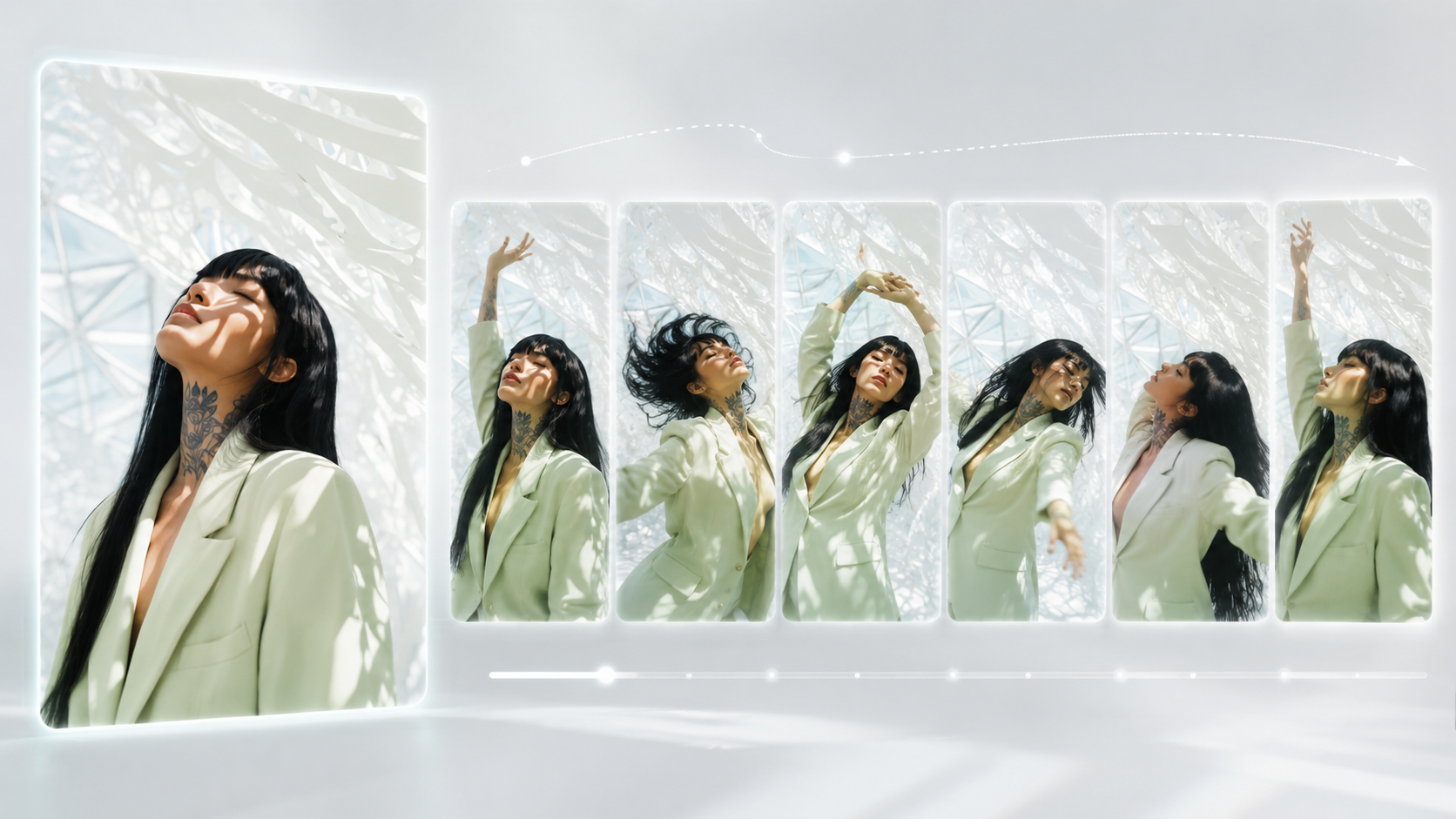
Use a product shot, character image, artwork, or visual reference that clearly shows the subject and composition.
Add movement, camera direction, pacing, and style so the model knows what should change between frames.
Try a model such as Seedance, Veo, Kling, Sora, or Wan video, then keep the strongest version for reuse.
A clean product photo turns into a slow rotating studio shot, soft key light, subtle camera push in, premium commercial style.
A portrait character looks toward camera, hair moving in light wind, cinematic close-up, gentle handheld motion.
A fantasy landscape painting becomes a moving scene with drifting fog, slow parallax, and glowing sunset light.
Use a clear source image with one main subject, visible edges, and enough background context. Add a motion prompt that describes camera movement, subject action, and the visual details you want to keep consistent.
Start with a clear reference image, keep the motion focused, and compare a few variations. This workflow helps you choose the output that matches the subject, composition, and motion direction you planned.
Use an image model page when you need a reference frame, then continue on a video model page such as Seedance, Veo, Kling, Sora, or Wan video according to the controls and model options visible in the app.