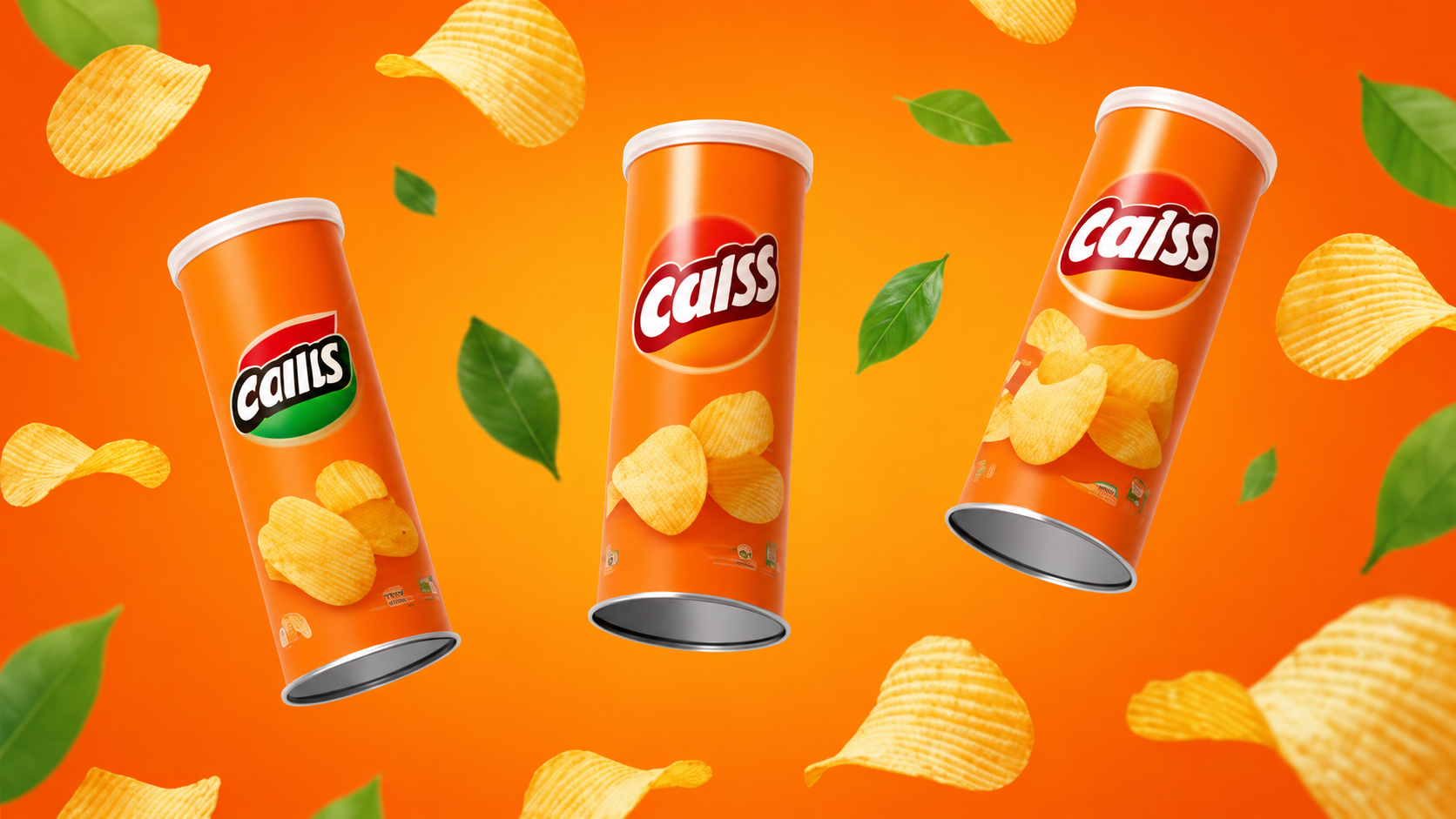
このガイドは実践的なワークフローリファレンスとして設計されています。生成前の決定、結果を比較しやすくするプロンプト構造、最終アセットを実際のキャンペーンやクリエイティブプロジェクトで有用に保つレビューチェックリストに焦点を当てています。このページの中心的な検索意図はAI商品画像ジェネレーターです。実践的な問いは、実際のチームがAI商品画像生成を活用し、よりクリーンなEコマースビジュアル、キャンペーンコンセプト、再利用可能な商品リファレンスフレームを作成する方法です。
OpenVideoMakerはマルチモデルのクリエイティブワークスペースであり、最良の回答は通常ワークフローとしての回答です。商品写真、ブランドカラー、希望する背景、素材の詳細、カメラアングル、出力チャネルから始め、1つ以上のモデルページを経て、出力を比較し、最も強い結果を次のステップのリファレンスとして再利用する流れになります。これはAI画像・AI動画の作業において特に重要です。各モデルはわずかに異なるブリーフに最適な結果を出すからです。商品用のプロンプトが機能しても、動画プロンプトにする前に異なるモーション言語が必要になる場合があります。単体では強力に見えるリファレンス画像でも、画像から動画への生成に活用する前に、よりクリーンなエッジ、シンプルな背景、明確な被写体が必要になることがあります。
このガイドを実践的なプレイブックとしてご活用ください。AI商品画像生成がどこに位置づくか、生成前に何を準備すべきか、より良いプロンプトの書き方、出力品質の評価方法、そしてAI商品画像ジェネレーターや画像から動画ジェネレーターなど、OpenVideoMakerの関連ワークフローとのつながり方を説明します。モデルの提供状況、制限、料金は変更される可能性があるため、最終的な設定については現在のジェネレーターUIが最も信頼できる情報源です。以下の戦略は、個々のモデルの詳細が進化しても有用であり続けるように設計されています。
簡潔な回答
AI商品画像ジェネレーターを評価する場合、3つの問いから始めてください:どのような入力がすでにあるか、どのような出力を出荷する必要があるか、プロジェクトはどれくらいの反復に耐えられるか。このワークフローは、タスクが明確な被写体、明確なビジュアル目標、再利用可能なレビューチェックリストで説明できる場合に最も役立ちます。ブリーフが1回のパスで多くの無関係な変更を求めている場合や、チームが結果の使用方法を決定していない場合はあまり有用ではありません。
良い最初のパスは1つの仕事を行うべきです。例えば、商品がクリーンに回転できるか、キャラクターが認識可能なままか、スケッチが洗練されたイラストになれるか、比較ページがユーザーのモデル選択を支援できるかをテストします。その後、2回目のパスで仕上げ、フォーマット、ペーシング、ディテールを改善します。この段階的アプローチはプロンプトのドリフトを防ぎ、クリエイティブプロセスを管理しやすくします。
OpenVideoMakerは関連作業を連携させることができるため役立ちます。画像の計画から動画生成、プロンプト例からモデルページ、公開例から自身のアセットへの移動が可能です。最も直接的なワークフローが必要な場合はAI商品画像ジェネレーターから始めてください。ブリーフが次の段階のステップを必要とする場合は画像から動画ジェネレーターを使用してください。関連モデルページにはGPT Image、Seedream、Imagen、Kling Image、Wan Image、Nano Bananaがあります。
生成前に準備するもの
AI出力の品質はブリーフの品質に大きく依存します。ジェネレーターを開く前に、意図するアセット、オーディエンス、チャネル、そしてアセットが存在する必要がある理由を書き留めてください。商品リスティング画像、有料ソーシャル動画、シネマティックなムードテスト、トーキングアバターのイントロは、それぞれ異なる指示を必要とします。この計画ステップをスキップしても、モデルは興味深いものを生成するかもしれませんが、結果が実際に有用かどうかを判断するのが難しくなります。
AI商品画像生成において最も有用な入力は、商品写真、ブランドカラー、希望する背景、素材の詳細、カメラアングル、出力チャネルです。各入力を制御面として扱ってください。プロンプトは言語と意図を制御します。リファレンス画像は被写体と構図を制御します。出力比率はアセットがどこで公開できるかを制御します。モデルの選択は速度、仕上げ、リファレンス処理、モーション動作のトレードオフを制御します。レビューチェックリストはチームが結果を保持するか再生成するかを制御します。
巨大なプロンプトから始めないでください。被写体、セッティング、希望する変更、カメラや画像スタイル、出力目的を記載したコンパクトなブリーフから始めます。出力に特定の弱点が見られた場合にのみ拡張します。商品がドリフトしている場合は商品固有の特徴を追加します。シーンが静かすぎる場合はモーション言語を追加します。画像が一般的に見える場合は素材、照明、使用例の詳細を追加します。動画が視覚的に煩雑な場合は二次的なアクションを削除し、1つのメインモーションアイデアに絞ります。
OpenVideoMakerにおけるAI商品画像生成の位置づけ
OpenVideoMakerは、使い捨てジェネレーターではなく、連携したワークフローとして使用する場合に最も強力です。典型的なワークフローはコンテンツ目標から始まり、画像または動画の作成に移行し、プロンプトの洗練とアセットレビューをループします。このワークフローはチームがよりクリーンなEコマースビジュアル、キャンペーンコンセプト、再利用可能な商品リファレンスフレームを作成するのに役立ちます。重要な点は、生成された各アセットが次のステップでより有用になるべきであり、単にアセットライブラリにクラターを追加するだけではないということです。
画像中心のプロジェクトでは、まずクリーンなリファレンスフレームを生成または選択します。プロジェクトに静止画、商品コンセプト、リファレンス、ビジュアルディレクションが必要な場合はGPT Image、Seedream、Imagenを使用します。静止フレームが機能したら、キャンペーンにモーションが必要な場合はSeedance、Veo、Klingに進みます。動画中心のプロジェクトでは、モーションブリーフから始め、ソース画像、最初のフレーム、最後のフレーム、リファレンス動画のいずれがモデルにより良いアンカーを与えるかを決定します。
最適な内部リンクパスは意図に依存します。直接的なワークフローを探すユーザーはAI商品画像ジェネレーターから入るべきです。より広範なオプションを比較するユーザーはAI動画ジェネレーターまたはAI画像ジェネレーターを閲覧してください。プロンプトのサポートが必要なユーザーは画像から動画へのプロンプト、商品動画プロンプト、Seedanceプロンプトを確認してください。この内部リンクパターンは、読者がリサーチからアクションに移動するのに役立ち、すべてのページに同じ広範なキーワードをターゲットさせることを強制しません。
ブリーフで活用すべき強み
- スタジオスタイルの商品コンセプト:曖昧な好みではなく、具体的なプロンプト要件に変換します。
- ライフスタイルシーンの探索:どのソースアセット、モデル設定、レビュールールが出力を制御すべきかを決定します。
- 背景とスタイルのバリエーション:最初のベースライン生成と次の焦点を絞ったバリエーションを選択するために使用します。
- リファレンス対応の静止フレーム:プロンプトだけでなく、承認チェックリストの一部にします。
- より高速なキャンペーンアイデア出し:最終アセットが公開されるチャネルに接続します。
これらの強みは単なるマーケティングラベルではありません。プロンプトとレビュープロセスを形成すべきものです。強みがリファレンスの一貫性であれば、よりクリーンなリファレンスをアップロードし、被写体が安定しているかを判断します。強みが商品ストーリーテリングであれば、生成前に商品の瞬間を定義します。強みが速度であれば、最初の出力を使って最終的な仕上げを期待するのではなく、方向性をテストします。強みがシネマティックモーションであれば、一般的な形容詞の代わりにカメラ言語を書きます。
ここは多くのチームがクレジットを無駄にする場所でもあります。新しいからといってモデルを選ぶのではなく、ジョブに合っているから選ぶべきです。より良い習慣は、まずワークフローを選択することです。タスクが探索、ドラフト、最終候補、プロンプトリサーチ、キャンペーンレビューのいずれかを決定し、その段階に合ったモデルと設定を選択します。
ステップバイステップのワークフロー
1. アセットとチャネルを定義する
生成する前に1行の制作ブリーフを書きます。その行にはアセットタイプ、チャネル、被写体、目的を含めます。例:有料ソーシャルテスト用の短い商品リビールを作成する、マーケットプレイスリスティング用のクリーンな商品画像を作成する、ナラティブコンセプト用のキャラクターモーションクリップを作成する。これにより、プロンプトがスタイルワードの曖昧な山になるのを防ぎます。
2. ソース素材を選択する
商品写真、ポートレート、スケッチ、リファレンス動画がすでにある場合、制御が改善される場合にのみ使用します。弱いリファレンスは、強いテキストプロンプトが助ける以上に出力を損なう可能性があります。クリーンな被写体のエッジ、読み取り可能な形状、十分な背景コンテキスト、気を散らすテキストやロゴがないかを確認します。ソース画像が十分に強くない場合は、まずより良いリファレンスを作成または編集します。
3. 最初のプロンプトを書く
最初のプロンプトはシンプルでテスト可能であるべきです。被写体を名前で指定し、シーンを説明し、アクションやビジュアル変換を述べ、カメラや構図の言語を追加し、意図するスタイルで仕上げます。競合する指示を重ねすぎないでください。マクロ商品撮影、ハンドヘルドドキュメンタリーのリアリズム、アニメ照明、浮遊タイポグラフィ、ファッションエディトリアルムードを同時に求めるプロンプトは判断が困難です。
4. 控えめなベースラインを生成する
ベースライン生成は最終的な勝者であることを意図したものではありません。診断パスです。モデルが被写体を理解しているか、入力リファレンスが有用か、モーションが読み取り可能か、出力チャネルが適切かを確認します。不完全でもベースラインを保存してください。それが次のバリエーションの比較基準になります。
5. 一度に1つの変数を変更する
最初の出力が近い場合、1つだけ変更します。カメラの動き、照明、背景、比率、時間、モデルを調整します。すべてを一度に変更すると、何が結果を改善したかわからなくなります。これが構造化されたワークフローがランダムなプロンプト実験に勝つ主な理由です。
6. チェックリストでレビューする
出力を保持する前に、被写体の一貫性、ビジュアルの明確さ、商品の正確性、モーションの読み取りやすさ、構図、背景の気を散らす要素、公開適合性を確認します。商業作品の場合は、権利、ブランドルール、プロバイダーの利用規約、リリース前に人間のレタッチが必要かどうかも確認します。承認できない美しい生成は完成したアセットではありません。
プロンプトフレームワーク
AI商品画像生成の信頼性の高いプロンプトには5つの要素があります:被写体、コンテキスト、アクション、スタイル、制約です。被写体はモデルに何が最も重要かを伝えます。コンテキストはシーンに十分な基盤を与えます。アクションは何が変化するかを説明します。スタイルはビジュアル言語を定義します。制約は読めないテキスト、商品のドリフト、煩雑な背景、一度に多すぎるアクションなどの一般的な失敗から出力を保護します。
この構造を使用します:
Subject: [main product, character, sketch, scene, or reference]
Context: [environment, lighting, channel, audience, campaign goal]
Action: [movement, transformation, camera behavior, edit instruction]
Style: [commercial, cinematic, editorial, playful, realistic, illustrated]
Constraints: [keep subject consistent, no unreadable text, no logos, simple background]
このフレームワークは意図的にシンプルです。ブリーフの要素を分離するため機能します。結果が失敗した場合、失敗した要素を診断できます。商品が間違っていれば被写体の行を改善します。モーションが弱ければアクションの行を改善します。ムードがずれていればコンテキストとスタイルを改善します。結果にアーティファクトが含まれていれば制約を厳しくします。
プロンプト例
スキンケアジャー on stone
Create skincare jar on stone for AI product image generation. Keep the core subject recognizable, describe the scene in one clear sentence, add slow camera push, controlled light movement, stable subject detail, and finish with premium realistic campaign style. Avoid unreadable text, avoid unlicensed logos, and keep the motion focused on one main idea.
このプロンプトは意図的に具体的ですが、過負荷ではありません。被写体を指定し、モデルにモーションや画像の方向を与え、制作目標を説明しています。OpenVideoMaker内でテストする際は、一度に1つの変数だけ変更してください:カメラの動き、照明、商品のディテール、背景、意図するチャネル。これにより、次の結果を前の結果と比較しやすくなります。
ワイヤレスチャージャー on desk
Create wireless charger on desk for AI product image generation. Keep the core subject recognizable, describe the scene in one clear sentence, add gentle camera orbit, clean background separation, polished commercial pacing, and finish with short-form social creative style. Avoid unreadable text, avoid unlicensed logos, and keep the motion focused on one main idea.
このプロンプトは意図的に具体的ですが、過負荷ではありません。被写体を指定し、モデルにモーションや画像の方向を与え、制作目標を説明しています。OpenVideoMaker内でテストする際は、一度に1つの変数だけ変更してください:カメラの動き、照明、商品のディテール、背景、意図するチャネル。これにより、次の結果を前の結果と比較しやすくなります。
アウトドアボトル at sunrise
Create outdoor bottle at sunrise for AI product image generation. Keep the core subject recognizable, describe the scene in one clear sentence, add slow camera push, controlled light movement, stable subject detail, and finish with cinematic editorial style. Avoid unreadable text, avoid unlicensed logos, and keep the motion focused on one main idea.
このプロンプトは意図的に具体的ですが、過負荷ではありません。被写体を指定し、モデルにモーションや画像の方向を与え、制作目標を説明しています。OpenVideoMaker内でテストする際は、一度に1つの変数だけ変更してください:カメラの動き、照明、商品のディテール、背景、意図するチャネル。これにより、次の結果を前の結果と比較しやすくなります。
ユースケース
マーケットプレイス画像
マーケットプレイス画像は、ブリーフに明確な被写体、定義された出力チャネル、チームが一貫して適用できるレビュー基準が含まれている場合、AI商品画像生成に最適です。まず作成したいアセットを指定し、最も重要なビジュアルやモーション動作を説明します。アセットが商品向けの場合、商品の特徴を安定させ、一度に多すぎるシーン変更を求めないようにします。アセットがストーリー向けの場合、感情的なビート、カメラ言語、フレーム間の連続性に焦点を当てます。
実践的なワークフローは、まず1つの控えめなバージョンを作成し、その結果をより表現豊かなバリエーションのベースラインとして使用することです。例えば、同じ被写体と照明を保ちながら、カメラ速度、背景の密度、スタイライゼーションの量を変更します。これにより、無関係な出力のフォルダではなく、有用な比較セットが得られます。最良の生成は最初のものではなく、キャンペーン目標との慎重な比較を生き延びたバージョンです。
ライフスタイル写真
ライフスタイル写真は、ブリーフに明確な被写体、定義された出力チャネル、チームが一貫して適用できるレビュー基準が含まれている場合、AI商品画像生成に最適です。まず作成したいアセットを指定し、最も重要なビジュアルやモーション動作を説明します。アセットが商品向けの場合、商品の特徴を安定させ、一度に多すぎるシーン変更を求めないようにします。アセットがストーリー向けの場合、感情的なビート、カメラ言語、フレーム間の連続性に焦点を当てます。
実践的なワークフローは、まず1つの控えめなバージョンを作成し、その結果をより表現豊かなバリエーションのベースラインとして使用することです。例えば、同じ被写体と照明を保ちながら、カメラ速度、背景の密度、スタイライゼーションの量を変更します。これにより、無関係な出力のフォルダではなく、有用な比較セットが得られます。最良の生成は最初のものではなく、キャンペーン目標との慎重な比較を生き延びたバージョンです。
広告クリエイティブ背景
広告クリエイティブ背景は、ブリーフに明確な被写体、定義された出力チャネル、チームが一貫して適用できるレビュー基準が含まれている場合、AI商品画像生成に最適です。まず作成したいアセットを指定し、最も重要なビジュアルやモーション動作を説明します。アセットが商品向けの場合、商品の特徴を安定させ、一度に多すぎるシーン変更を求めないようにします。アセットがストーリー向けの場合、感情的なビート、カメラ言語、フレーム間の連続性に焦点を当てます。
実践的なワークフローは、まず1つの控えめなバージョンを作成し、その結果をより表現豊かなバリエーションのベースラインとして使用することです。例えば、同じ被写体と照明を保ちながら、カメラ速度、背景の密度、スタイライゼーションの量を変更します。これにより、無関係な出力のフォルダではなく、有用な比較セットが得られます。最良の生成は最初のものではなく、キャンペーン目標との慎重な比較を生き延びたバージョンです。
バンドルビジュアル
バンドルビジュアルは、ブリーフに明確な被写体、定義された出力チャネル、チームが一貫して適用できるレビュー基準が含まれている場合、AI商品画像生成に最適です。まず作成したいアセットを指定し、最も重要なビジュアルやモーション動作を説明します。アセットが商品向けの場合、商品の特徴を安定させ、一度に多すぎるシーン変更を求めないようにします。アセットがストーリー向けの場合、感情的なビート、カメラ言語、フレーム間の連続性に焦点を当てます。
実践的なワークフローは、まず1つの控えめなバージョンを作成し、その結果をより表現豊かなバリエーションのベースラインとして使用することです。例えば、同じ被写体と照明を保ちながら、カメラ速度、背景の密度、スタイライゼーションの量を変更します。これにより、無関係な出力のフォルダではなく、有用な比較セットが得られます。最良の生成は最初のものではなく、キャンペーン目標との慎重な比較を生き延びたバージョンです。
ヒーロー画像コンセプト
ヒーロー画像コンセプトは、ブリーフに明確な被写体、定義された出力チャネル、チームが一貫して適用できるレビュー基準が含まれている場合、AI商品画像生成に最適です。まず作成したいアセットを指定し、最も重要なビジュアルやモーション動作を説明します。アセットが商品向けの場合、商品の特徴を安定させ、一度に多すぎるシーン変更を求めないようにします。アセットがストーリー向けの場合、感情的なビート、カメラ言語、フレーム間の連続性に焦点を当てます。
実践的なワークフローは、まず1つの控えめなバージョンを作成し、その結果をより表現豊かなバリエーションのベースラインとして使用することです。例えば、同じ被写体と照明を保ちながら、カメラ速度、背景の密度、スタイライゼーションの量を変更します。これにより、無関係な出力のフォルダではなく、有用な比較セットが得られます。最良の生成は最初のものではなく、キャンペーン目標との慎重な比較を生き延びたバージョンです。
品質チェックリスト
生成を保持する前にこのチェックリストを使用してください:
- 被写体の正確性:メインの被写体は認識可能なままであり、不要なディテールが追加されていないべきです。
- 構図:フレームには公開チャネルに十分な余白があるべきです。
- モーションの明確さ:出力が動画の場合、視聴者はクリップを再生し直さなくてもメインの動きを理解できるべきです。
- 照明と素材:商品の表面、肌、生地、金属、ガラス、影は意図したスタイルに一致するべきです。
- 背景のコントロール:背景は被写体と競合するのではなく、サポートするべきです。
- テキストとロゴ:モデルと使用例が特別に適していない限り、生成されたテキストに頼らないでください。
- フォーマット適合性:キャンペーンでアセットを使用する前に、比率、時間、解像度、クロップセーフティを確認します。
- 法務・ブランドレビュー:公開前に権利、肖像権、商標、商品の主張、プロバイダーの利用規約を確認します。
チェックリストが重要なのは、AIメディアがブリーフに失敗していても印象的に見える可能性があるからです。クリップは美しい照明を持つかもしれませんが、間違った商品ディテールを表示しているかもしれません。画像はプレミアムに見えるかもしれませんが、モバイルでクロップが悪くなるかもしれません。トーキングアバターは明瞭に話すかもしれませんが、ブランドトーンに合わないかもしれません。各出力を本来の目的に対してレビューしてください。
よくある間違い
1つ目のよくある間違いは、広範なキーワードをプロンプトとして使用することです。「ベスト商品動画」や「シネマティックAI広告」といったフレーズはカテゴリを説明していますが、ショットを説明していません。モデルには具体的な情報が必要です:どの商品、どのシーン、どの動き、どのスタイル、そして何を安定させるべきか。
2つ目の間違いは、1回の生成で多すぎる変換を求めることです。被写体が回転し、背景が変わり、カメラがズームし、照明がシフトし、商品が変形するべき場合、出力は不安定になる可能性があります。最も重要な変更を最初に選んでください。
3つ目の間違いはソース画像を無視することです。画像から動画、リファレンスベースのワークフローはクリーンな入力を報います。ソースにぼやけ、雑然、奇妙なクロップ、読めないラベル、不明確な被写体の境界がある場合、出力はそれらの問題を引き継ぐ可能性があります。
4つ目の間違いはモデルの選択を永続的な決定として扱うことです。マルチモデルワークスペースでは、比較することがポイントです。1つのモデルを探索に使い、別のモデルを最終仕上げに使い、さらなるモデルを特定の入力タイプやスタイルに合う場合に使用します。
5つ目の間違いはレビューなしで公開することです。AI出力は正確性、権利、ブランドセーフティ、チャネル適合性について確認されるべきです。これはEコマース、広告、教育、肖像権や商品の主張を含むワークフローで特に重要です。
関連ページの選び方
現在の記事があなたの直近のタスクに合致する場合、AI商品画像ジェネレーターを使用してください。ワークフローの次のステップが必要な場合は画像から動画ジェネレーターを使用してください。ブリーフにまだ強力な静止フレームが必要な場合はAI画像ジェネレーターを使用してください。プロジェクトにモーション、タイミング、カメラ動作が必要な場合はAI動画ジェネレーターを使用してください。希望するモーションを明確に説明することが最も難しい部分の場合は、プロンプトページを使用してください。
この内部パスはSEOとユーザーの両方に有用です。広範なハブページは広範な検索需要をターゲットにでき、焦点を絞ったページはAI商品画像ジェネレーター、画像から動画へのプロンプト、Seedanceプロンプト、Runway代替、商品動画プロンプト、EコマースAIビジュアルなどのロングテール検索を満たすことができます。ユーザーはどの記事から入っても、すぐに次のアクションを見つけられるべきです。
FAQ
AI商品画像生成はすべてのプロジェクトに最適な選択ですか?
いいえ。最適な選択は入力タイプ、出力チャネル、レビュー速度、クリエイティブ目標に依存します。AI商品画像生成は上記のワークフローに合致する場合に有用ですが、プロジェクトに異なるリファレンスタイプ、出力スタイル、反復パターンが必要な場合は、別のOpenVideoMakerモデルやツールの方が適している場合があります。
最初のプロンプトはどのように書くべきですか?
直接的な制作ブリーフから始めてください。被写体を指定し、コンテキストを説明し、1つのメインアクションまたは変換を追加し、ビジュアルスタイルを選択し、最も重要な制約を含めます。最初のプロンプトは、出力が成功したか失敗したかの理由を理解できる程度にシンプルに保ちます。
リファレンス画像を使用すべきですか?
制御が改善される場合にリファレンス画像を使用してください。商品、キャラクター、ポートレート、構図に敏感な作業に特に役立ちます。ワークフローがサポートしているからといって弱いリファレンスを使用しないでください。クリーンなプロンプトは雑然としたリファレンスを上回ることがあります。
何つのバリエーションを生成すべきですか?
方向性を比較するのに十分なバリエーションを生成しますが、レビューがランダムにならない程度に留めます。3〜5つの焦点を絞ったバリエーションは、20の無関係な試みよりも有用なことが多いです。チームが何が改善をもたらしたかを理解できるように、一度に1つの変数を変更します。
出力を商用利用できますか?
商用利用は、あなたのアセット、権利、プロバイダーの利用規約、最終コンテンツに依存します。生成されたアセットを公開キャンペーンで使用する前に、商品の主張、ブランドルール、肖像権の許可、商標、公開要件を確認してください。
最終ワークフロー
AI商品画像生成を最も良く活用する方法は、生成を制御されたクリエイティブループとして扱うことです。明確なブリーフから始めます。入力を準備します。構造化されたプロンプトを書きます。ベースラインを生成します。焦点を絞ったバリエーションを比較します。最も強い出力を保持します。そしてそれをリファレンス、キャンペーンアセット、次のステップの入力として再利用します。
最も直接的な次のステップとして、AI商品画像ジェネレーターを開いてください。プロジェクトに隣接するワークフローのサポートが必要な場合は、画像から動画ジェネレーターに進んでください。まだモデル間で選択している場合は、AI動画ジェネレーターまたはAI画像ジェネレーターから始め、ソース素材に合うモデルページを比較してください。