GPT Image 2.5 AI Image Generator Online

Create product photos, photorealistic AI portraits, campaign visuals, and editable reference-based images with GPT Image 2.5 when you need precise prompt following and polished stills.

0 / 32000
Model overview

GPT Image 2.5 AI image generator for polished image creation

Use GPT Image 2.5 as an AI image generator, GPT photo generator, and reference-aware image editor for product pages, ad creatives, portraits, and text-sensitive visual work.

Precise prompt following
Reference image support
Photorealistic AI portraits
720 to 4K delivery
Featured model

GPT Image 2.5 Flare

Model
GPT Image 2.5 Flare
Ratio
1:1 / 16:9 / 9:16 / 4:3
Resolution
720 / 1K / 2K / 4K
Quality
Low / Medium / High / Extra high / Maximum

Key strengths

  • Delivers product shapes, materials, and scene direction accurately across complex multi-element prompts.
  • Handles reference images to guide composition, style transfer, and subject placement.
  • Supports Low / Medium / High / Extra high / Maximum quality tiers with resolutions from 720 to 4K, adapting from draft to final asset.
Best use cases

  • Product mockups, campaign visuals, thumbnails, editorial images, and creative concept boards.
  • AI photo generation for photorealistic portraits, fashion editorials, and profile imagery.
  • Marketing and creative teams that need rapid visual exploration before committing to a shoot.
  • Brand workflows that require consistent visual language across multiple assets.

Prompt and workflow tips

  • Write GPT image generator prompts with the subject, environment, lighting, camera angle, and intended use case in one detailed brief.
  • Add up to 4 reference images when you need an AI image generator with image guidance for composition, color palette, or product placement.
  • Start with Medium quality for exploration; switch to High for final delivery-ready assets.

How to use GPT Image 2.5 as an AI image generator

  1. 01Open GPT Image 2.5 and write a GPT image generator prompt that names the subject, setting, lighting, and visual style.
  2. 02Upload reference images when you need an AI image generator with image guidance for composition, product shape, or style.
  3. 03Choose the output options for a draft or final asset, including transparent background when the image will be composited elsewhere.
  4. 04Generate variations, review details, and refine the prompt like an AI image editor workflow.

Prompt guide

Structure every prompt with four parts: scene, subject, important details, and use case. This helps the model understand context, focus, visual style, and final output purpose.

Prompt template
Scene: where this happens, time of day, background, environment
Subject: who or what is the main focus
Important details: materials, clothing, texture, lighting, camera angle, lens feel, composition, mood
Use case: editorial photo / product mockup / poster / UI screen / infographic / concept frame
01

Editorial key visual

Describe what you want to generate
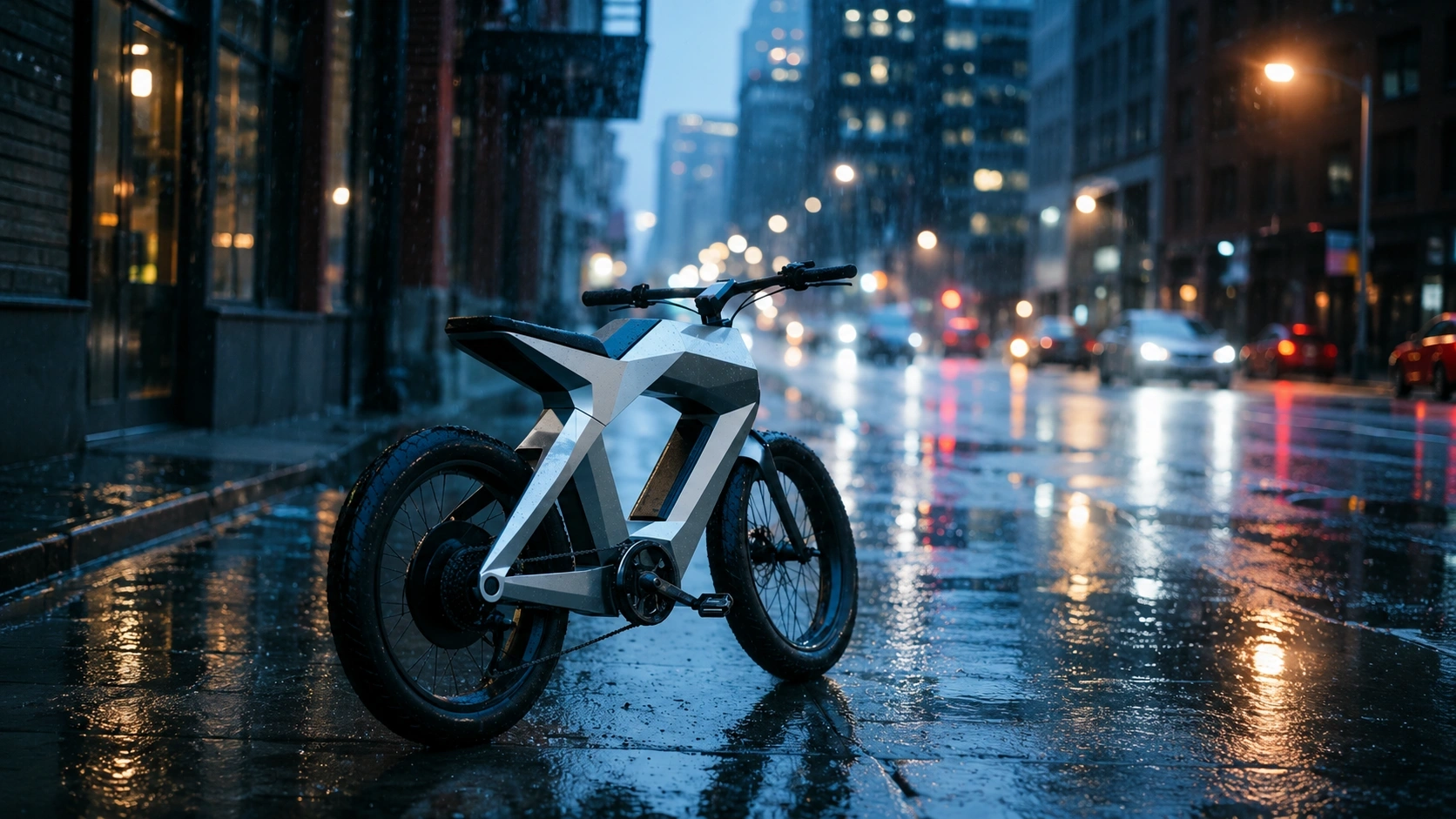
Scene: Rainy city street at night with wet reflective pavement, urban architectural backdrop.
Subject: A futuristic electric bike parked under city lights.
Important details: Fashion campaign styling, layered atmospheric haze, reflective wet surfaces catching neon and street light, editorial color grading, no text, no logo.
Use case: Editorial photo / brand campaign key visual.
GPT Image 2.5 editorial key visual example
02

YouTube thumbnail scene

Describe what you want to generate
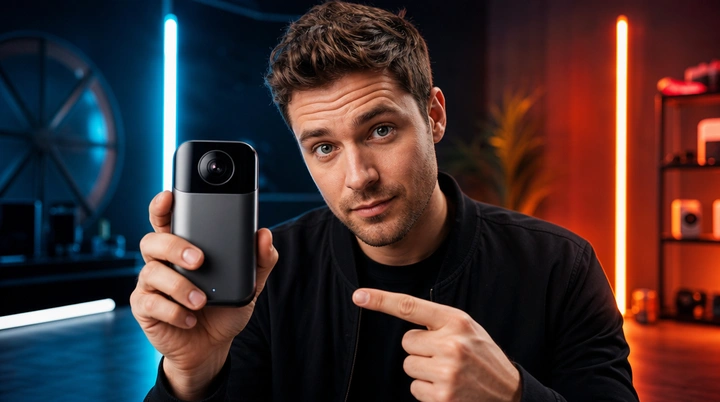
Scene: Dramatic neon-lit studio with bold colored lighting, dark moody background.
Subject: A founder holding a new gadget, positioned center-frame with strong eye contact.
Important details: Bold composition with strong foreground separation, crisp facial lighting, cinematic neon color accents, high contrast, no text, no logo.
Use case: YouTube thumbnail / social media hero frame.
GPT Image 2.5 YouTube thumbnail example

Best settings

Choose settings based on where the asset will ship, not just on what looks biggest in the UI.

GPT Image 2.5

YouTube product demo

Landscape frames give you room for subject, copy, and safe crop across desktop and TV.

Ratio
16:9
Resolution
2K
Quality
High
GPT Image 2.5

TikTok / Reels cover

Vertical output keeps the focal subject centered and leaves clean space for UI overlays.

Ratio
9:16
Resolution
1K
Quality
Medium
GPT Image 2.5

PDP product hero

Square high-resolution stills hold up better for zoom, retouch, and storefront reuse.

Ratio
1:1
Resolution
720
Quality
High

Related tools

This tool uses third-party model capabilities and is not affiliated with or endorsed by the original model providers unless explicitly stated.

Frequently asked questions

How do I use GPT Image 2.5 as a GPT image generator?+

Open GPT Image 2.5, describe the subject, setting, and visual style in one focused prompt, add reference images when they help, choose the output settings, and generate a first image to review.

Does GPT Image support reference images?+

Yes. The current page supports uploading reference images and combining them with a text prompt. Reference images are useful for guiding composition, framing, subject placement, or overall visual direction.

What output settings does GPT Image support?+

The current page supports common image ratios, multiple output resolutions, and different quality levels so you can move between quick exploration and more polished final output. The latest available options should be checked in the generator itself.

Can GPT Image 2.5 work as a GPT image editor?+

If you provide reference images, GPT Image can work well for extension, reinterpretation, and style-guided image creation. Whether it fits a strict editing workflow depends on your task, your prompt, and how much control you need over the final result.

Can I use GPT Image outputs commercially?+

Commercial use depends on your subscription plan, the model provider terms, and the laws that apply to your project. If you plan to use the result in ads, client work, or branded publishing, review the relevant terms before release.

How can I write better prompts for GPT Image?+

Describe the subject, scene, lighting, camera feel, style, and intended use clearly. If you already know the visual direction, add reference images and practical constraints such as background cleanliness, text-free output, or target aspect ratio.